LESCO Web Bill 2026: How to View, Print and Download Your Bill on PITC
The paper bill does not always arrive on time. Sometimes it is lost, damaged by rain or delivered to the wrong house. That is why the LESCO web bill has become the fastest way for millions of consumers to see their electricity bill. With just your reference number or customer ID, you can open the official bill online, check the amount and due date, print it or save it as a PDF.
This guide explains exactly what the LESCO web bill is, who runs it, how to open it on a computer or phone, how to print and save it, how to pay it, how it differs from other ways of checking your bill and what to do when it does not show. If you only want to see your bill right now, you can also use our LESCO bill check online tool.
Table of Contents
What Is the LESCO Web Bill?
The LESCO web bill is an electronic copy of your monthly electricity bill. It is hosted on the bill portal of PITC (Power Information Technology Company), the Power Division’s IT company that runs billing systems for the distribution companies. PITC handles billing for about 35 million consumers every month, including LESCO consumers in Lahore, Kasur, Okara, Sheikhupura and Nankana Sahib.
The Power Division itself points consumers to bill.pitc.com.pk to view, print and download electricity bills online. The NEPRA Consumer Service Manual also says bills should be available on the company’s website for downloading and payment. So the LESCO web bill is not a third-party service; it is the official channel.
What the web bill shows
- Consumer name, address and reference number.
- Tariff, sanctioned load and meter details.
- Reading dates, readings and units consumed.
- Charges, taxes, adjustments and arrears.
- Amount payable within the due date and after it.
- Bill history for previous months.
To understand every section of the bill in detail, see our LESCO bill explained guide.
What You Need Before You Start
You only need one of these two numbers to open your LESCO web bill:
- Reference number: the 14-digit number at the top of your bill, made up of the batch number, sub-division code, account number and a letter for urban or rural. Our LESCO reference number guide shows exactly where to find it.
- Customer ID: a separate identifier printed on your bill. See our LESCO bill by customer ID page.
Keep an old bill, a photo of a bill or a saved PDF on your phone. Once you have the number, every future LESCO web bill takes only seconds to open.
How to Open Your LESCO Web Bill Step by Step
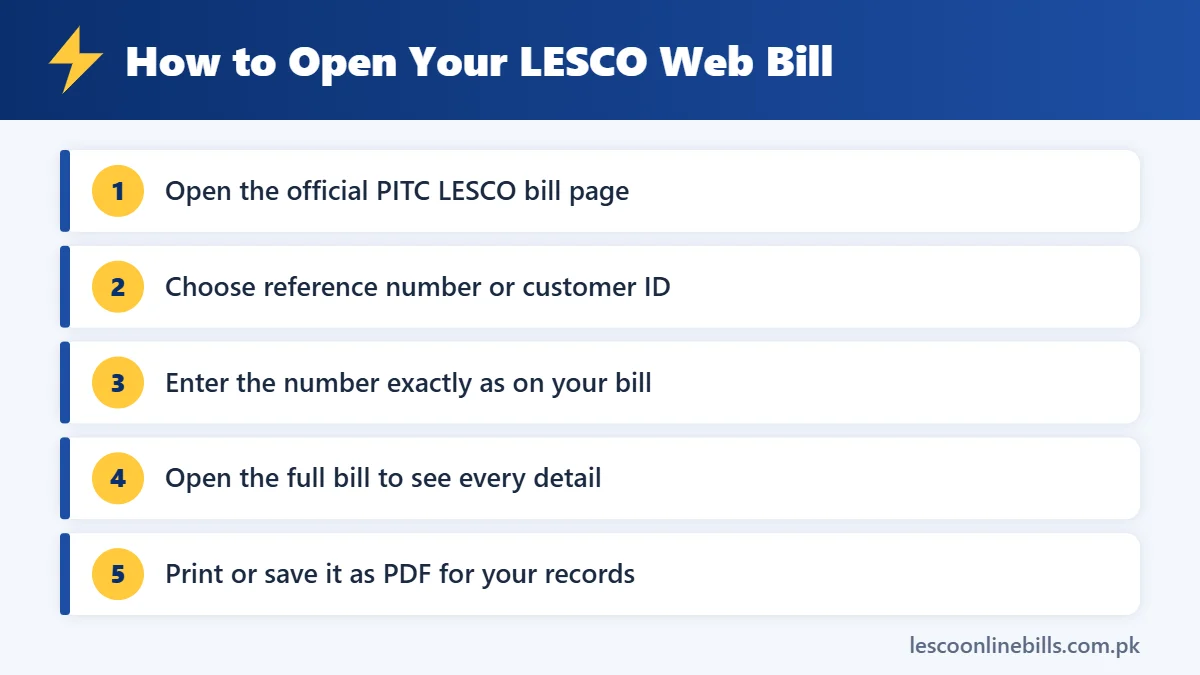
- Open the official page: go to the PITC LESCO bill portal. Make sure the address is on the pitc.com.pk domain.
- Choose your input: select reference number or customer ID, depending on which one you have.
- Enter the number: type it exactly as printed, without spaces or extra characters.
- Submit: the page shows a summary with the amount payable and due date.
- Open the full bill: use the option to view the full bill for all details, including readings and history.
- Save or print: print it or save it as a PDF for your records.
Some versions of the page also offer separate options for general and industrial (MDI) bills. Homes and small shops should use the general option. Large industrial consumers use the MDI option where it appears.
How to Print or Save the LESCO Web Bill as PDF
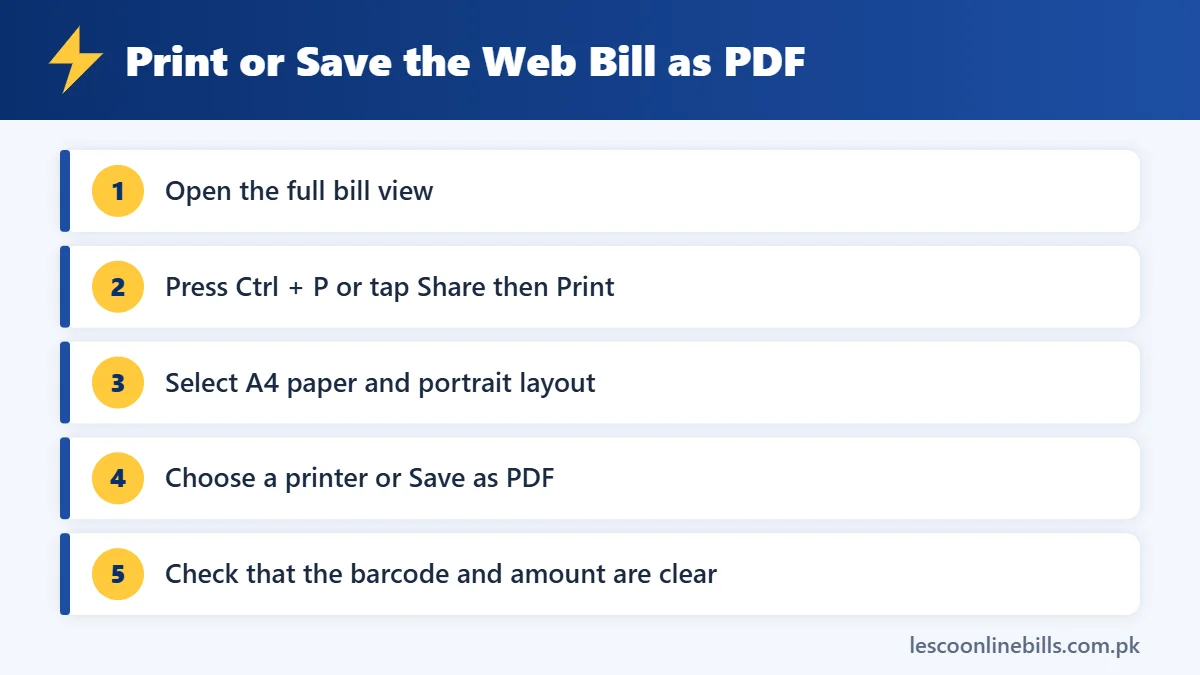
The portal displays the bill in your browser. To keep a copy, use the browser’s built-in print feature.
On a computer
- Open the full LESCO web bill.
- Press Ctrl + P (Windows) or Cmd + P (Mac).
- Select A4 paper, portrait layout and “fit to page” if the bill is cut off.
- Choose your printer, or select “Save as PDF” to keep a digital copy.
On a mobile phone
- Open the full bill in Chrome or your default browser.
- Tap the menu or share button and choose Print.
- Select “Save as PDF” and save the file to your phone.
After printing, check that the amount, due date and barcode are clear. A blurred barcode can cause problems at a bank counter. For more printing tips, see our LESCO duplicate bill guide.
How to Pay After Checking Your Web Bill
Once you have the LESCO web bill, you can pay in several ways:
- Banking apps and internet banking: add LESCO as a biller and use your reference number.
- Mobile wallets: most wallets support electricity bill payments.
- QR code: newer bills include a QR code for quick payment. See our LESCO bill QR code guide.
- Bank counters: a clear printout of the bill with its barcode is generally used at bank counters.
From 1 April 2026, LESCO stopped accepting bill payments at post offices, so use banks, apps or other authorised channels instead. Our LESCO online bill payment guide compares the options, and the LESCO bill paid or not guide shows how to confirm that your payment was posted.
LESCO Web Bill vs Other Ways to Check Your Bill
| Method | Best for | Limits |
|---|---|---|
| LESCO web bill (PITC portal) | Full official copy, printing and PDF | Needs reference number or customer ID |
| Paper bill | Monthly record at home | Can arrive late or get lost |
| SMS alerts | Quick amount and due date reminders | No full breakdown |
| Banking apps | Fast payment | Shows the amount, not the full bill |
| Bill check tools on our site | Easy checking with guides alongside | Use the official portal for the final copy |
For alerts, register your number through our LESCO SMS registration guide. For older months, use our LESCO previous bill guide.
The New LESCO Bill Design in 2026
Around June 2026, a simpler redesigned bill format with a QR code started appearing on LESCO bills. The LESCO web bill follows the same official data, so the amount, due date and charges match your printed bill. If you are used to the old layout, take a minute to find the reading block, charges section and payment block on the new design before you pay.
Using the Online Bill for Several Meters
Many families and landlords pay more than one bill: a house with upper and lower portions, a rented flat, a shop and perhaps an elderly parent’s home. Checking each one online is far easier than waiting for paper bills.
- Make a list: write each reference number with a short label, such as “Upper portion” or “Shop”.
- Save as contacts or notes: keep the list on your phone so you can open any bill in seconds.
- Use banking app billers: add each connection as a separate biller with a clear name.
- Check on the same day: open all bills a few days after reading so you can plan payments together.
Landlords can also share the online bill with tenants each month. This avoids arguments about lost bills and keeps payments on time.
Building a Simple Monthly Bill Archive
Saving a PDF every month gives you a complete record without any paper. It also makes complaints, tax filing and property sales easier. Here is a simple method:
- Create a folder on your phone, laptop or cloud drive called “Electricity Bills”.
- Inside it, make one folder for each connection.
- Save each month’s PDF with a clear name, such as “2026-11 Upper Portion”.
- Save the payment receipt next to the bill.
- Keep at least 12 months, and longer if you have a dispute.
With this archive, you can compare units month by month, prove payments and spot unusual jumps. If you ever need to file a complaint or ask for a correction, your evidence is ready.
Tips for Overseas Pakistanis and Absent Owners
If you live abroad or away from home, the online bill lets you keep track of your property’s electricity without relying on anyone. Open the bill from anywhere, check that the reading looks normal and pay through an international-friendly banking app or ask a trusted family member to pay locally.
Watch for sudden jumps in units at an empty house. They can point to a meter problem, a wrong reading or unauthorised use. Our LESCO bill correction guide explains what to do if a bill looks wrong while you are away.
Reading the Web Bill Quickly: Five Things to Check
- Name and reference number: confirm you opened the right connection.
- Reading dates: they should be about 30 days apart.
- Units: compare with the same month last year in the history table.
- Arrears: make sure no paid amount is shown as unpaid.
- Due date: note it and plan payment a few days earlier.
These checks take less than a minute and catch most billing problems before they become expensive.
LESCO Web Bill Not Showing? Common Problems and Fixes
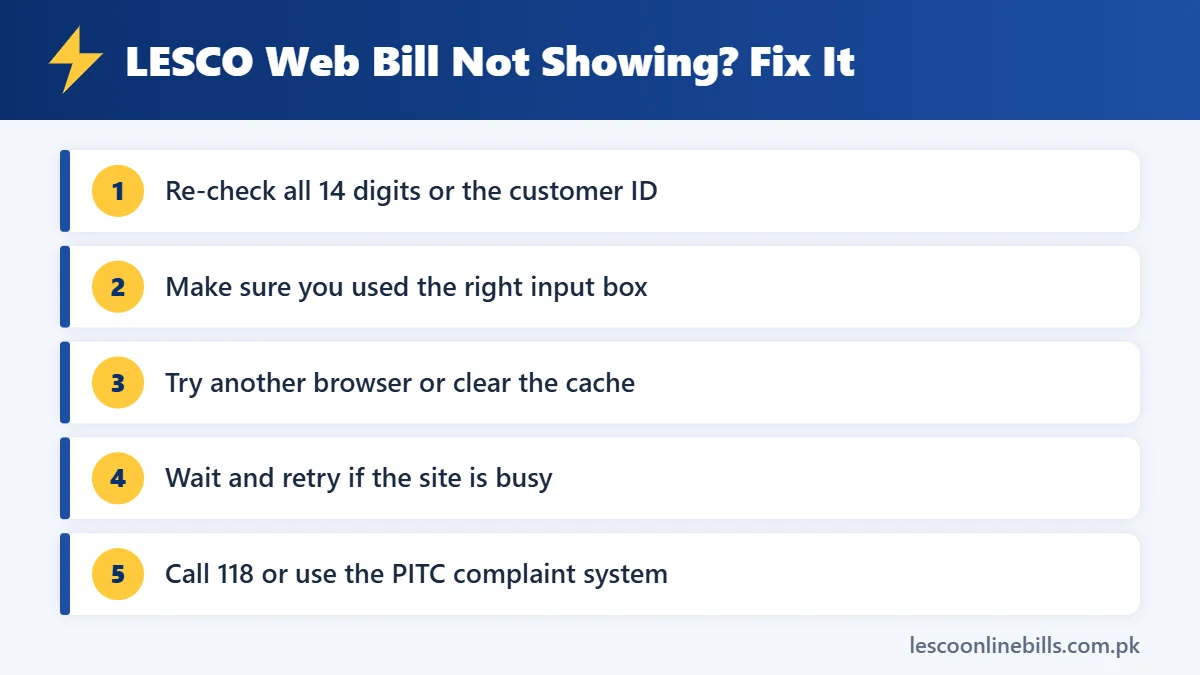
- Wrong digits: one wrong digit in the 14-digit number will show an error or another bill. Re-check every digit.
- Wrong input box: entering a customer ID in the reference number box, or the other way round, will fail.
- Site busy: near due dates, heavy traffic can slow the portal. Try again after some time or early in the morning.
- Browser issues: clear the cache, update the browser or try a different one.
- Bill not generated yet: if the reading has just been taken, the new bill may not be uploaded yet. Wait a day or two.
- Still not working: call 118, send an SMS to 8118 or use the PITC complaint system.
Why the Online Amount May Differ From What You Expect
Sometimes the amount on the online bill looks higher than you expected even when the reading is correct. This is usually because of charges rather than errors. Monthly fuel price adjustments, quarterly tariff adjustments, fixed charges and taxes can all change from one month to the next. A long billing cycle can also push units into a higher slab.
Before you assume the bill is wrong, compare the units with your own meter using our LESCO meter reading guide, then check each charge line. If the units are right, the difference is most likely due to adjustments or taxes. If the units are wrong, apply for a correction at your sub-division before the due date. You can find the right office through our LESCO office guide.
Accessibility Tips for Older Users
- Use the browser zoom (Ctrl and +) to make the bill text larger.
- Save the bill as a PDF and open it in a PDF reader, which often makes text clearer.
- Ask a family member to bookmark the official page on your phone’s home screen.
- Keep your reference number written on a card near your phone.
Stay Safe: Use the Official LESCO Web Bill Page
Many look-alike websites copy the LESCO web bill design. Some show ads, collect personal data or ask for your CNIC. Protect yourself with these simple rules:
- The official bill portal is on the pitc.com.pk domain.
- You never need to enter your CNIC, bank PIN or card details to view your bill.
- Do not trust pages that ask you to pay through unknown accounts.
- Bookmark the official page so you always open the right site.
Quick Summary
- The online bill is the official copy on the PITC portal.
- You need your 14-digit reference number or customer ID.
- Open the full bill to see readings, charges and history.
- Print it or save it as a PDF from your browser.
- Pay through banks, apps or the QR code, not at post offices.
- If it does not show, check the number, retry later or call 118.
LESCO Web Bill FAQs
What is the LESCO web bill?
It is the online copy of your LESCO electricity bill provided on the official PITC bill portal. You can view, print or download it using your 14-digit reference number or customer ID.
How can I download my LESCO web bill as a PDF?
Open the full bill on the PITC page, use your browser’s print option and choose Save as PDF as the printer. On a phone, use the share or print option and save the file to your device.
Can I pay a printed LESCO web bill at a bank?
A clear printout of the official bill with its barcode is generally used for payment at bank counters. You can also pay online through banking apps and wallets using the reference number. Since April 2026, LESCO bills are no longer accepted at post offices.
Why is my LESCO web bill not showing?
The most common reasons are a wrong digit in the reference number, using the wrong input box, or the site being busy near due dates. Re-check the number, try again later or call 118 if the bill still does not appear.
Can I check the LESCO web bill with my customer ID?
Yes. The official bill page accepts either the 14-digit reference number or the customer ID printed on your old bill.
Is the LESCO web bill the same as the paper bill?
Yes. The web bill shows the same amount, due date and details as your printed bill. It is especially useful when the paper bill is late or lost.
Final Words
The LESCO web bill is the simplest way to see your official electricity bill anytime. Keep your reference number or customer ID handy, open the PITC portal, view the full bill and save a PDF each month. Pay through a bank, app or QR code, and if the bill does not show, check the digits and try again or call 118. With a monthly habit of checking your web bill early, you will never be caught off guard by a late or lost paper bill.