LESCO Online Bill Payment 2026: 7 Easy Ways to Pay Your Bill
LESCO online bill payment saves you from long bank queues in the last days of the month, and since 1 April 2026 it matters even more, because post offices no longer accept LESCO bills.
Whether you use JazzCash, Easypaisa or a bank app, the steps take only a few minutes. You need your 14-digit reference number and enough balance. This guide shows exactly where to tap in each channel, what to check before you confirm, and what to do if something goes wrong.
If you only want to compare apps for viewing your bill, read our guide to the best LESCO bill check app. This page is only about paying.
Table of Contents
LESCO Online Bill Payment Methods Compared
Here are seven practical ways to pay a LESCO bill in 2026, from phone apps to cash options. Pick the one that suits your phone, your bank and your internet access.
| Method | What you need | Internet needed? | Proof you get |
|---|---|---|---|
| JazzCash app or *786# | JazzCash account, reference number | App yes; USSD no | In-app receipt and SMS |
| Easypaisa app | Easypaisa account, reference number | Yes | In-app receipt and SMS |
| Bank app or internet banking | Bank account, OTP | Yes | E-receipt, SMS or email |
| QR code on the bill | Bank app with a Scan QR option | Yes | E-receipt |
| ATM | Debit card and PIN | No | Printed slip |
| Bank branch counter | Printed bill and cash | No | Stamped bill copy |
| JazzCash or Easypaisa shop | Reference number and cash | No | Printed or SMS receipt |
What you need before you pay
Every LESCO online bill payment channel asks for the same basic details. Keep these ready so the payment goes through on the first try.
- 14-digit reference number: printed at the top of your bill, often followed by a U or R letter. Most apps ask for this, not the shorter customer ID.
- Enough balance in your wallet or bank account to cover the full amount payable within the due date.
- Your registered mobile number, because banks send an OTP to confirm the payment.
- The due date, so you pay early enough to avoid a surcharge.
LESCO Online Bill Payment Through JazzCash
JazzCash is a popular way to pay electricity bills in Lahore, because it works on almost any smartphone and, on a Jazz SIM, even without internet.
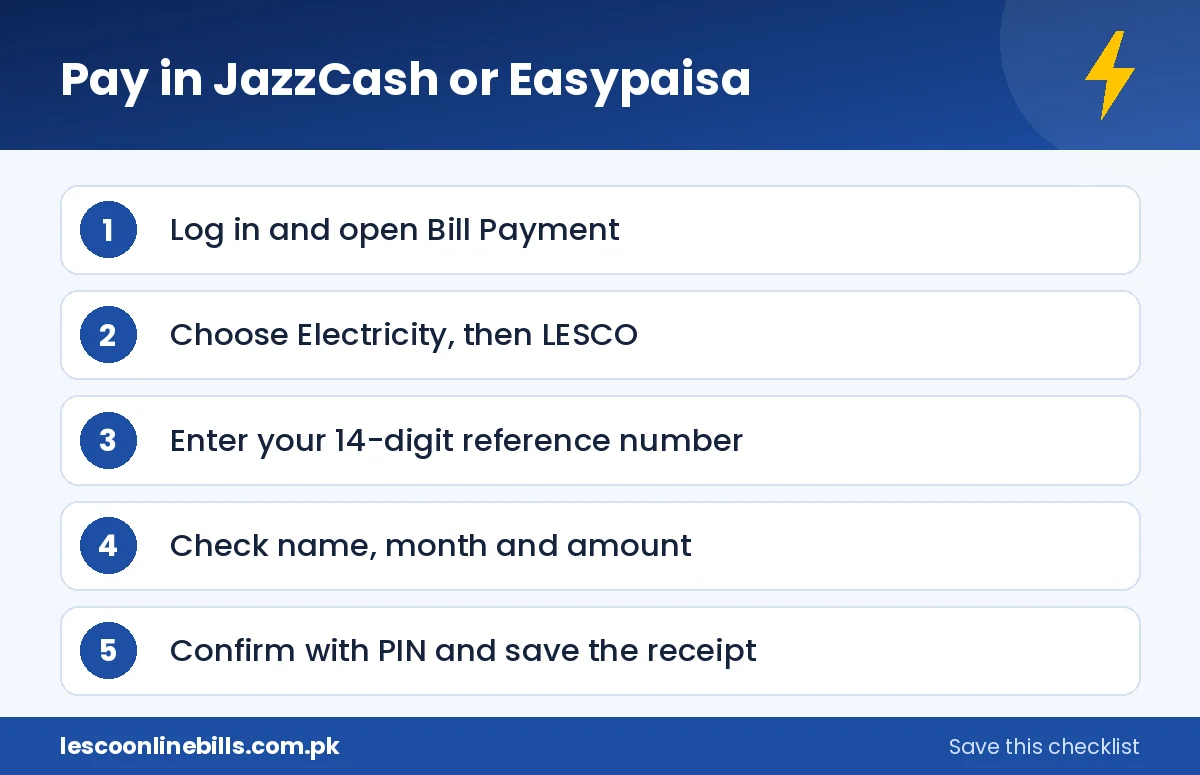
In the JazzCash app
- Open the JazzCash app and log in with your MPIN.
- Tap Pay Bills and choose Electricity.
- Select LESCO from the list of companies.
- Type your 14-digit reference number and continue.
- Check the consumer name, bill month and amount on screen.
- Confirm with your MPIN and save the receipt that appears.
Without internet (USSD)
Dial *786# from your JazzCash number, choose Pay Bills, then pick Electricity and LESCO. Enter the reference number and confirm with your MPIN. Menu numbers can change, so read each screen before pressing a digit.
JazzCash’s bill payment charges and monthly limits have changed over the years. Any fee is shown on the confirmation screen before you pay, so always check it there.
LESCO Online Bill Payment Through Easypaisa
Easypaisa lists LESCO under its electricity billers, and its official website says bill payment is free for customers paying from their own account.
- Log in to the Easypaisa app with your PIN.
- Tap Bill Payments, then choose Electricity.
- Select LESCO from the company list.
- Enter your reference number, or scan the barcode if the app offers it.
- Check the name, due date and amount, then tap Pay.
- Save or share the receipt for your records.
Tip: save LESCO as a favourite or saved bill after your first payment. Next month you can pay in a few taps without typing the reference number again.
You can also pay a parent’s or tenant’s bill from your own account. LESCO online bill payment does not need the connection to be in your name; it only needs the correct reference number.
LESCO Online Bill Payment With Bank Apps and Internet Banking
Most banks in Pakistan, including HBL, UBL, Meezan and Allied Bank, let you pay utility bills in their apps. Many banks reach billers through networks such as 1LINK’s 1BILL service, which covers electricity bills.
General steps for any bank app
- Log in to your mobile banking app or internet banking website.
- Open Payments or Bill Payment and choose the Utility or Electricity category.
- Select LESCO (Lahore Electric Supply Company) as the biller.
- Enter the reference number and let the app fetch your bill.
- Confirm the amount and enter the OTP sent to your phone.
- Save the e-receipt and add LESCO as a saved biller for next month.
For example, in myABL you go to Bill Payments, choose New Biller, pick the Utility category, select LESCO, enter the Reference ID and confirm with the OTP. Other bank apps follow nearly the same pattern.
Internet banking on a laptop works the same way. It is handy for LESCO online bill payment of more than one connection, such as your house and your shop, because you can save each reference number as a separate biller.
Pay by scanning the QR code on your bill
Since October 2025, LESCO bills carry a payment QR code that you can scan with a mobile banking app. Open your app, tap Scan QR or Pay with QR, point the camera at the code, check the details and confirm. Our LESCO bill QR code guide explains what to do if the code will not scan.
The government asked utilities in 2025 to add Raast QR codes to bills, and some companies, such as FESCO, launched Raast bill payment in 2026. If your bank app offers a Raast option for LESCO, you can use it. If not, use the normal Bill Payment menu.
Pay Without a Smartphone: ATM, Bank Branch or Agent Shop
Not everyone in the family uses apps. If LESCO online bill payment is not possible for you, or your phone has no internet that day, these three options still work well.
At an ATM with your debit card
Your debit card works for bill payment at many ATMs. The exact menu differs by bank, and some banks allow bill payment only at their own machines.
- Insert your debit card and enter your PIN.
- Choose Bill Payment, or Other Transactions and then Payments.
- Select Electricity and then LESCO.
- Enter the reference number and confirm the amount.
- Take the printed slip and keep it safe.
ATM slips are printed on thermal paper that fades within months. Take a clear photo of the slip on your phone the same day.
At a bank branch
If you prefer cash, take your printed bill to a commercial bank branch. The cashier stamps your bill as proof, so check that the stamp shows the date and amount before you leave.
Branches get very crowded in the last two or three days before the due date. Go early in the morning or a few days before the deadline to avoid the rush.
At a JazzCash or Easypaisa shop
JazzCash and Easypaisa shops in your area also collect bills in cash. Give them the reference number, pay the exact bill amount, and ask for the printed or SMS receipt with a transaction ID.
Do not leave the shop until you see the confirmation. If the shopkeeper says “it will go through later”, ask for your cash back and pay somewhere else.
Due Date and Late Payment Surcharge
Every LESCO bill shows two amounts: payable within the due date and payable after the due date. The difference is the late payment surcharge (LPS).
Under the terms in NEPRA’s LESCO tariff determination, a 5% LPS may be charged for the first three days after the due date, and 10% after that. It is calculated on the billed amount, excluding government taxes and duties.
The same terms say that if your bill reaches you less than seven days before the due date, the surcharge should start only after the seventh day from delivery. Keep proof if your bill arrives late.
If a bill is too large to pay at once, ask your LESCO revenue office about installments before the due date, not after it.
A LESCO online bill payment made late at night on the due date can be posted the next day. To stay safe, pay at least one or two days early.
How to Confirm Your Payment and Save the Receipt
After any LESCO online bill payment, your bank or wallet confirms it straight away, but LESCO’s online bill can take a little time to show it. Until then, your receipt is your only proof.
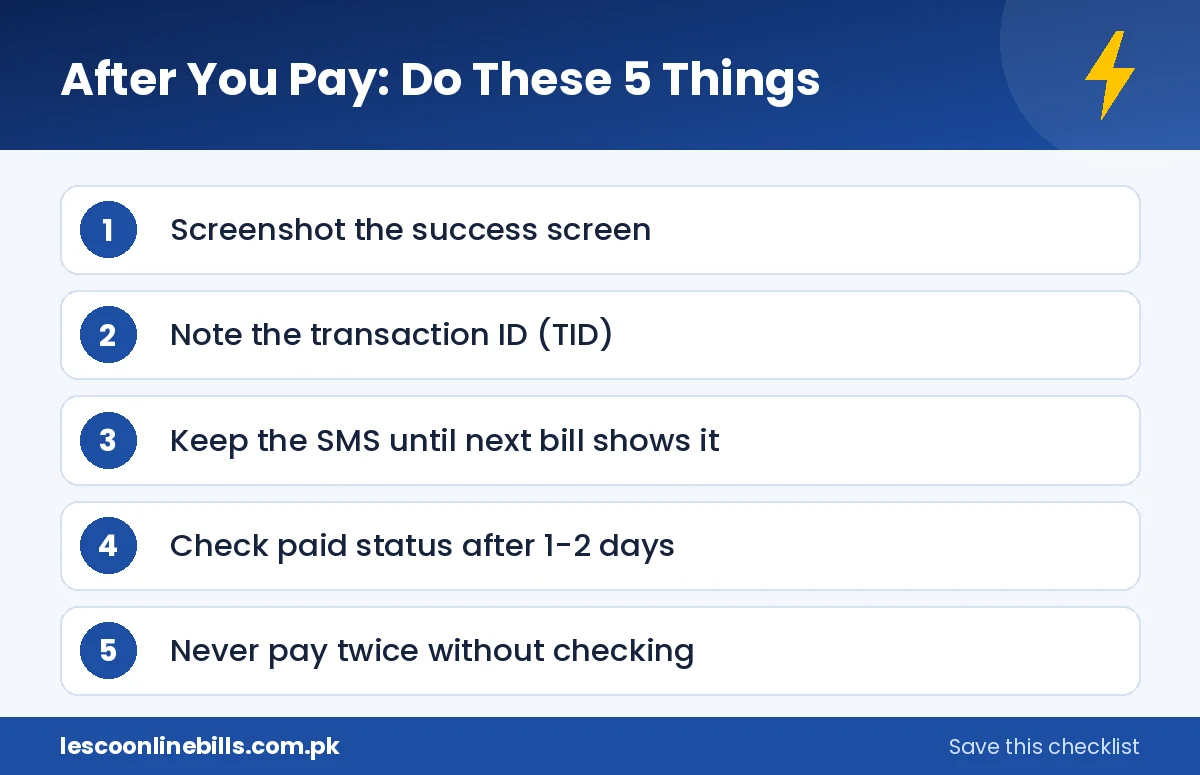
- Take a screenshot of the success screen.
- Write down the transaction ID (TID) or reference shown on the receipt.
- Keep the confirmation SMS or email until your next bill shows the payment.
- Download the PDF receipt if your bank app offers one.
- Save all receipts in one phone folder named “LESCO” so you can find them quickly.
Money Deducted but Bill Shows Unpaid? Do This
This happens now and then after a LESCO online bill payment, usually because of a posting delay or a wrong reference number. Stay calm and follow these steps instead of paying a second time.
- Wait one or two working days, then check your bill again online.
- Compare the reference number on your receipt with the one on your bill.
- Call your bank or wallet helpline with the TID and ask them to confirm the payment reached LESCO.
- If it is still missing, take the receipt to your LESCO sub-division revenue office and ask them to post it.
- If a surcharge was added even though you paid on time, request a correction with your receipt.
For the full checking process, see our guide on LESCO bill paid or not. If you paid to a wrong reference number, contact your bank first, because fixing a payment made to someone else’s account can take time.
Paying a Duplicate Bill or a Lost Bill
You do not need the paper bill for LESCO online bill payment through an app or ATM. The reference number is enough, and the app fetches the current amount automatically.
If you lost the bill and do not remember the reference number, look at an old bill or receipt. You can also download a LESCO duplicate bill and print it if you want to pay at a bank counter.
If your bill has arrears from earlier months, the app shows the full amount due. Pay the full “payable within due date” figure so no balance is carried forward.
Safety Tips for LESCO Online Bill Payment
Fraudsters know that more people now pay bills on their phones, so they send fake messages, links and QR codes. Follow these simple rules every month.
- Download wallet and bank apps only from the Google Play Store or Apple App Store.
- Never share your OTP, MPIN or card PIN with anyone, even if the caller says they are from LESCO or your bank.
- Check the consumer name on screen before you confirm.
- Do not pay through links received on WhatsApp or SMS from unknown numbers.
- Scan only the QR code printed on your own bill, not stickers or images shared by others.
LESCO Online Bill Payment FAQs
How can I do LESCO online bill payment?
Open JazzCash, Easypaisa or your bank app, go to Bill Payment, choose Electricity and then LESCO, and enter your 14-digit reference number. Check the amount and confirm with your PIN or OTP.
Is LESCO online bill payment free?
Easypaisa says bill payment is free for its customers, and many banks do not charge for utility bills. Charges can change, so check the confirmation screen before you pay.
Can I pay my LESCO bill online after the due date?
Yes, LESCO online bill payment usually works after the due date too, but you pay the “after due date” amount, which includes the late payment surcharge. Paying on time is always cheaper.
Can I still pay my LESCO bill at the post office?
No. LESCO stopped bill collection at Pakistan Post offices from 1 April 2026. Use a bank, JazzCash, Easypaisa, an ATM or the QR code instead.
How long does a LESCO online bill payment take to show?
The bank or wallet confirms right away, but the payment can take a short while, sometimes a day or two, to appear on LESCO’s online bill. Keep your receipt until it shows.
Can I pay a LESCO bill without the paper bill?
Yes. For LESCO online bill payment through an app or ATM, you only need the reference number. For a bank counter, print a duplicate bill first.
Final Words
LESCO online bill payment is quick once you set it up: save LESCO as a biller in your favourite app, pay a day or two before the due date, and keep the receipt until the next bill confirms it.
Before you pay, check your latest bill amount on our free LESCO bill check online tool. Disclaimer: LESCO Online Bills is an independent guide and is not affiliated with LESCO. For official information, visit lesco.gov.pk.