LESCO Duplicate Bill 2026 – Download, Print & Save as PDF
Lost your paper bill, or it never reached your door? You can get a LESCO duplicate bill online in less than a minute, free of cost. All you need is the 14-digit reference number or the customer ID printed on any old bill. This guide shows you how to view, download, print and save your LESCO duplicate bill as a PDF, what every part of the bill means, and how to fix the errors people run into most often.
Quick answer: Open the official PITC LESCO bill page or our LESCO bill check online tool, type your 14-digit reference number without spaces, press Search, then use Print (Ctrl + P) and choose “Save as PDF” to download your LESCO duplicate bill.
Table of Contents
What Is a LESCO Duplicate Bill?
A LESCO duplicate bill is an online copy of the monthly electricity bill issued by Lahore Electric Supply Company. It carries the same reference number, units, amount and due date as the paper bill the meter reader leaves at your door. The data comes straight from the official billing system run by PITC (Power Information Technology Company), so the copy is reliable for checking your dues and for paying them.
People usually need a duplicate copy when:
- the paper bill was not delivered, got wet or was thrown away by mistake;
- they want to pay early, before the paper bill arrives;
- they need a recent utility bill for a rent agreement, school admission, bank account or visa file;
- a family member or tenant living in another city has to pay on their behalf.
What You Need Before You Check
You need only one of these two numbers. Both are printed in the top-left part of every LESCO bill.
| Number | What it looks like | Where to find it |
|---|---|---|
| Reference number | 14 digits plus a letter (U or R), in the pattern 12 34567 1234567 U | “Reference No” box at the top of the bill |
| Customer ID | A separate, shorter consumer number | “Consumer ID” row, close to the reference number |
Type the reference number as 14 digits only. Do not add spaces, dashes or the U/R letter at the end. If you prefer the customer ID, follow our guide on LESCO bill check by customer ID.
How to Check Your LESCO Duplicate Bill Online (Step by Step)
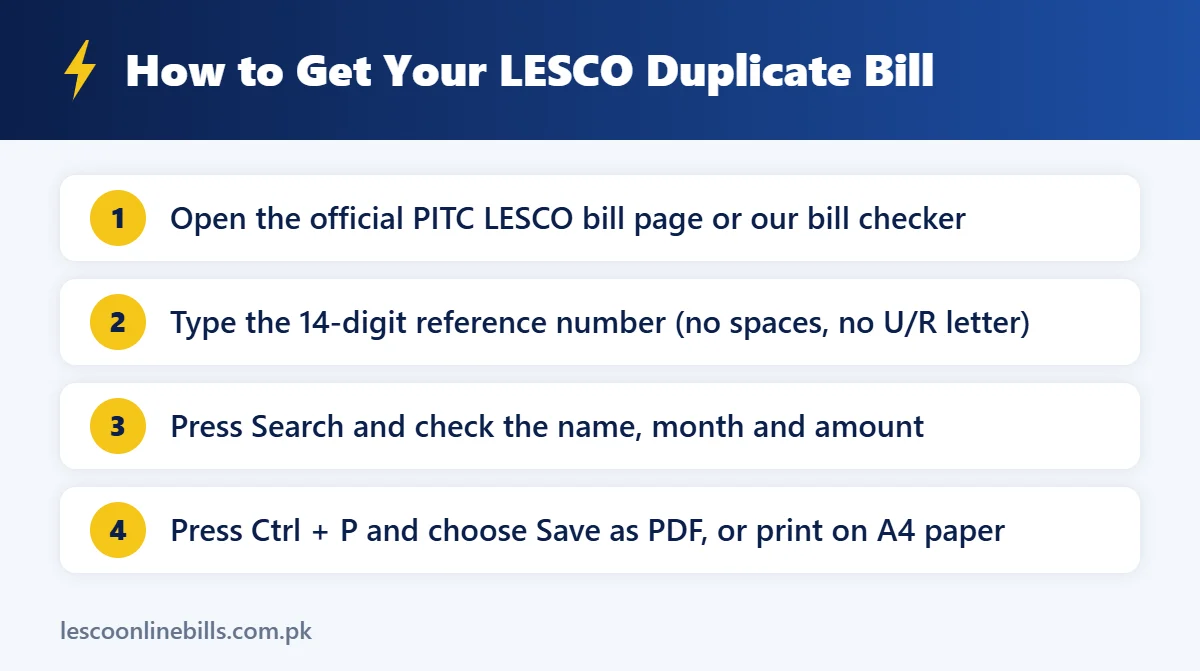
- Open the official bill page. Go to the PITC LESCO bill portal at bill.pitc.com.pk/lescobill, or use the free checker on our homepage.
- Pick your search type. If the page asks, choose whether you are searching by reference number or by customer ID.
- Enter the number. Type the 14 digits carefully. A single wrong digit opens someone else’s bill or shows an error.
- Press Search. Your latest LESCO duplicate bill opens on screen within a few seconds.
- Verify the details. Match the name, address, billing month and amount with an old bill before you pay.
Tip: bookmark the bill page on your phone. Next month you only have to open the bookmark and type the number again.
How to Download a LESCO Duplicate Bill as PDF
The bill opens inside your browser, so the easiest way to keep a copy is the browser’s own print option. It works on every device and needs no app.
On a computer (Chrome, Edge or Firefox)
- Open your bill as shown above.
- Press Ctrl + P on Windows or Cmd + P on a Mac.
- Under “Destination”, choose Save as PDF.
- Keep paper size A4 and layout Portrait, then click Save.
On an Android phone
- Open the bill in Chrome.
- Tap the three-dot menu, then Share and Print.
- Select Save as PDF at the top and tap the PDF icon.
On an iPhone
- Open the bill in Safari and tap the Share icon.
- Choose Print.
- In the print preview, tap the Share icon again and pick Save to Files.
Give the file a clear name such as “LESCO-bill-October-2026.pdf” so you can find it later. A folder with twelve monthly PDFs also makes it easy to spot a sudden jump in units.
How to Print a LESCO Duplicate Bill
- Use A4 paper and keep the scale at 100% or “Fit to page” so no part of the bill is cut.
- Turn on Background graphics in the print settings so shaded boxes and QR codes come out clearly.
- Black-and-white printing is enough; colour is not required for payment.
- Check that the QR codes are sharp. A blurred code cannot be scanned.
What Information Does a LESCO Duplicate Bill Show?
The online copy shows the same details as your paper bill:
- consumer name and address;
- reference number and customer ID;
- tariff (for example, residential) and sanctioned load;
- previous and present meter readings and the units used;
- bill month, reading date, issue date and due date;
- amount payable within the due date and after the due date (with the late payment surcharge);
- billing history for the last 12 months, including payments. NEPRA’s Consumer Service Manual requires every bill to show this history.
New in 2026: Since June 2026, LESCO bills use a simpler layout with QR codes. One QR code shows the full breakdown of taxes and adjustments, one is for protected-consumer subsidy registration, and one lets you pay through a banking app. If your copy shows these codes, make sure they print clearly.
Want to know if the amount is fair? Enter your units in our LESCO bill calculator or compare them with the current LESCO unit rate slabs.
Why Is This Month’s Amount Different?
Even when your units stay the same, the bill can change because of monthly and quarterly adjustments decided by NEPRA. For example, October 2026 bills include a fuel charge adjustment of Rs1.11 per unit for August 2026, and September to November 2026 bills carry a quarterly adjustment of about 52 paisa per unit. Lifeline consumers are exempt from both. Crossing a slab limit, such as going above 200 units, can also raise the per-unit rate for the whole month.
Can You Pay With a LESCO Duplicate Bill?
Yes. NEPRA’s manual says bills must be available on the company website for downloading and payment, so you can pay with a LESCO duplicate bill. Your options include:
- Banking apps and internet banking: choose Utility or Electricity, then LESCO, enter the reference number and confirm.
- Mobile wallets: JazzCash, Easypaisa and similar apps under Bill Payments, Electricity, LESCO.
- QR code: scan the payment QR code on the bill with a banking app that supports QR payments. LESCO introduced QR bill payment in October 2025.
- Bank branches and ATMs: show the printed copy at the counter, or enter the reference number at the ATM.
Post offices stopped collecting LESCO bills on 1 April 2026, so use a bank, an app or another authorised channel instead. Pay before the due date to avoid the late payment surcharge.
LESCO Duplicate Bill Not Showing? Common Problems and Fixes
| Problem | Likely reason | What to do |
|---|---|---|
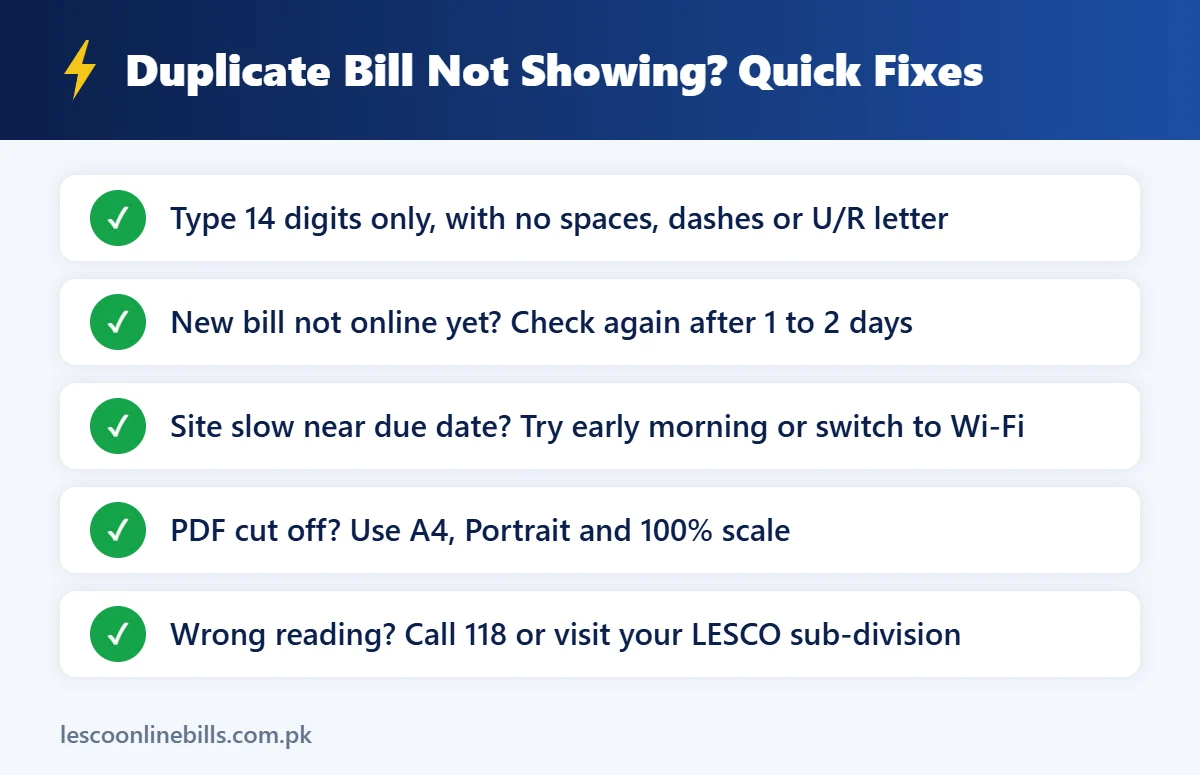
| “Record not found” or invalid number | A digit is missing, spaces were added, or the U/R letter was typed | Enter 14 digits only; copy them from an old bill or a bank receipt |
| Last month’s bill still shows | The new bill is not online yet; it usually appears a few days after the meter reading | Check again after one or two days |
| Nothing shows for a new meter | New connections can take one or two billing cycles to appear | Ask your sub-division office for the first bill |
| Page does not load | Heavy traffic close to due dates | Try early morning or late night, clear the browser cache or switch to Wi-Fi |
| Wrong reading or amount | Meter misreading or an estimated reading | Take a photo of your meter and call 118 or visit your sub-division |
| Printed PDF is cut off | Wrong scale or margins | Use A4, Portrait and 100% scale |
Online Duplicate Bill vs Office Copy
| Point | Online duplicate bill | Copy from LESCO office |
|---|---|---|
| Time | Under one minute | Needs a visit and waiting time |
| What you need | Reference number or customer ID | CNIC plus reference number or address |
| Months covered | Latest bill with 12-month history | Older months can be requested |
| Best for | Quick payment and monthly records | Old records and billing disputes |
No Reference Number? Other Ways to Get Your LESCO Duplicate Bill
- Look at any old bill. The reference number stays the same for the same meter.
- Check bank, ATM, JazzCash or Easypaisa receipts and the billers saved in your app.
- Ask your landlord or the property owner.
- Call the Power Division helpline 118, or visit your LESCO sub-division office with your CNIC and address.
Some websites claim to find a bill by name or CNIC. The official portal works with the reference number or customer ID, so never type your CNIC, OTP or bank PIN on a site that only promises to show your bill.
Stay Safe: Use Official Sources Only
- Open the bill only on the official PITC page, the official LESCO Light app, or a trusted checker that asks for nothing except the reference number.
- In May 2026 the Power Division warned about fake QR codes and subsidy links. Scan only the QR code printed on your own bill.
- Pay only through banks, licensed wallets and other authorised channels.
Note: lescoonlinebills.com.pk is an independent information website. It is not run by LESCO or PITC.
LESCO Duplicate Bill FAQs
Is a LESCO duplicate bill valid for payment?
Yes. The online copy comes from the official billing system, and banks, apps and ATMs take payment against the same reference number.
When is the new bill uploaded online?
Usually a few days after your meter is read, and often before the paper bill reaches your home. If you see last month’s bill, try again after a day or two.
Can I get a LESCO duplicate bill for previous months?
The online bill shows a 12-month history of units, amounts and payments. For a full copy of an older month, visit your sub-division or customer service centre.
Is there any fee for a LESCO duplicate bill?
No. Viewing, downloading and printing the online copy is free.
Can I check my bill on a mobile phone?
Yes. Open the bill page in your phone’s browser, or use the official LESCO Light app by PITC.
Does the reference number change every month?
No. It stays the same for your meter, so you can save it once and use it every month.
Final Words
Getting a LESCO duplicate bill takes less than a minute: open the official page or our checker, enter your 14-digit reference number, then print it or save it as PDF. Keep a PDF of every month, pay before the due date, and use official channels only. Bookmark this guide so the steps are close at hand next month.